Neovim v0.11 and onwards changes to LSP configuration
/ 4 min read
Table of Contents
What was the purpose of nvim-lspconfig
I first wrote about how I set up LSPs in Neovim back in May 2024 nvim-mason-lsps. But since then Neovim has had 9 releases with new features added to the core Neovim package.
When I first started configuring Neovim I was largely inspired by Josean Martinez, who provided some nice tutorials on YouTube about how to properly setup and configure LSP support in Neovim. At the time, Neovim did not have native support for LSP configuration and by this I mean that you had to rely on plugins like nvim-lspconfig in order to configure LSPs. What nvim-lspconfig did was pull down from the git repo the default configurations provided by the community for each LSP server. For example, the lua_ls default configuration looks like this:
return { cmd = { 'lua-language-server' }, filetypes = { 'lua' }, root_markers = { '.luarc.json', '.luarc.jsonc', '.luacheckrc', '.stylua.toml', 'stylua.toml', 'selene.toml', 'selene.yml', '.git', },}Before Neovim v0.11 this meant that your Neovim config would have to require nvim-lspconfig to get the default configuration needed for each LSPs. So a configuration might look something like this:
return {  "neovim/nvim-lspconfig",  event = { "BufReadPre", "BufNewFile" },  config = function()  local lspconfig = require("lspconfig")
  local capabilities = cmp_nvim_lsp.default_capabilities()      local on_attach = function(client, bufnr)      opts.buffer = bufnr    end
  --configuration for lua_ls  lspconfig["lua_ls"].setup({  capabilities = capabilities  on_attach = on_attach,  })}
All this configuration did was take the default LSP configuration for lua_ls and attach the LSP server to the buffer. The LSP in this case would activate when the filetype was lua and the LSP lua_ls would look for root_markers to determine the root directory of a project.
This becomes a bit convoluted when you have a lot of different LSP servers that you wanted to configure. Especially since, for the most part, you’d likely be sticking to what the default LSP client configuration offers which essentially was the following:
- auto-detection of project roots (root_dir)
- sensible defaults (capabilities, on_attach, etc.)
However, now there is no need to use an external plugin to set LSPs up in this way in Neovim 1
So what changed exactly?
Starting around v0.10 → v0.11, Neovim began integrating native LSP management and handler improvements, including:
- vim.lsp.start() (simpler than .start_client())
- built-in vim.lsp.config and per-server defaults (experimental in 0.10, stable in 0.11)
- automatic root directory detection
- native handler customization (vim.lsp.handlers.hover, vim.lsp.handlers.signature_help, etc.)
But all this means is that in Neovim, you don’t necessarily have to have nvim-lspconfig installed because most defaults would become available LSP servers. This also meant that Neovim would, by default, look for LSP configuration inside of the ~/.config/nvim/lsp directory.
Now my LSP configuration is much simpler. Although, I still use mason to download and install each LSP server, I use the builtin Neovim LSP handlers (e.g. vim.lsp.enable) to start and attach each LSP to the corresponding buffer.
So now, in my Neovim configuration the folder structure looks like this:
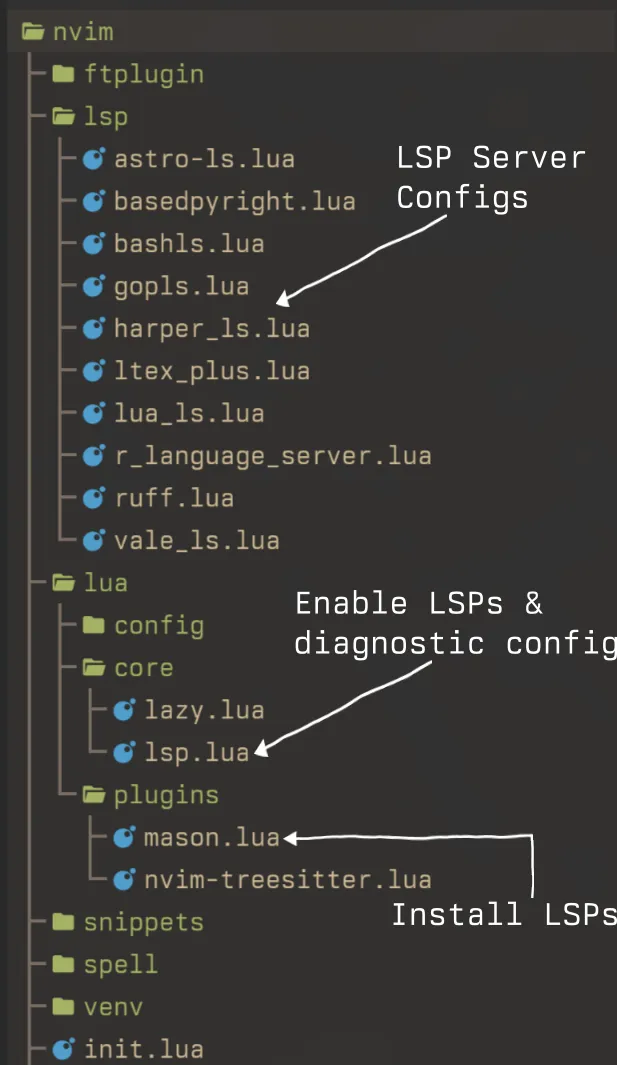
An LSP server e.g. basedpyright.lua looks like this (note that I also change from nvim-cmp to blink.cmp as the completion engine, a blog post about this coming soon):
local blink = require("blink.cmp")return { cmd = { "basedpyright-langserver", "--stdio" }, filetypes = { "python" }, root_markers = { "pyproject.toml", "uv.lock", ".python-version", "requirements.txt", "setup.py", "setup.cfg", ".venv", }, capabilities = vim.tbl_deep_extend( "force", {}, vim.lsp.protocol.make_client_capabilities(), blink.get_lsp_capabilities(), { fileOperations = { didRename = true, willRename = true, }, } ), settings = { basedpyright = { analysis = { autoSearchPaths = true, useLibraryCodeForTypes = true, autoImportCompletions = true, diagnosticMode = "workspace", }, }, },}I then add this to the lsp.lua file to enable the LSP, like so:
vim.lsp.enable({ "html", "cssls", "tailwindcss", "lua_ls", "basedpyright", "matlab_ls", "bashls", "clangd", "ltex_plus", "vale_ls", "harper_ls", "r_language_server", "gopls", "ruff", "astro-ls",})And thats it 🎉 Really straightforward.
So, Should You Ditch nvim-lspconfig?
This is the big question. My footnote 1 is key: you can still use nvim-lspconfig if you wish!
The nvim-lspconfig plugin is not obsolete. It now acts as a compatibility and convenience layer on top of the new native system. When you call lspconfig.lua_ls.setup({}), it’s just taking your settings and putting them into vim.lsp.config.lua_ls for you.
Reasons to Keep nvim-lspconfig |
Reasons to Remove nvim-lspconfig |
|---|---|
You like the setup() API — it's familiar and works fine. |
Fewer plugins — remove a dependency, making config faster. |
Easy ensure_installed — integrates smoothly with mason. |
“The Native Way” — prefer built-in Neovim LSP configuration. |
Utility functions — helpful tools (lspconfig.util). |
Clarity — config becomes a simple Lua table (vim.lsp.config). |
For me, the change to native LSP config is a huge step forward. It’s a classic example of the Neovim philosophy: start with a minimal core, and as plugins prove their utility, integrate their best ideas directly into the editor. This makes Neovim more powerful out of the box and simplifies configuration for everyone in the long run.
Reactions
Comments
Loading comments...